Installed App
Installing DraftPDF
How to install DraftPDF as an app from a supported browser and what the installed app can do.
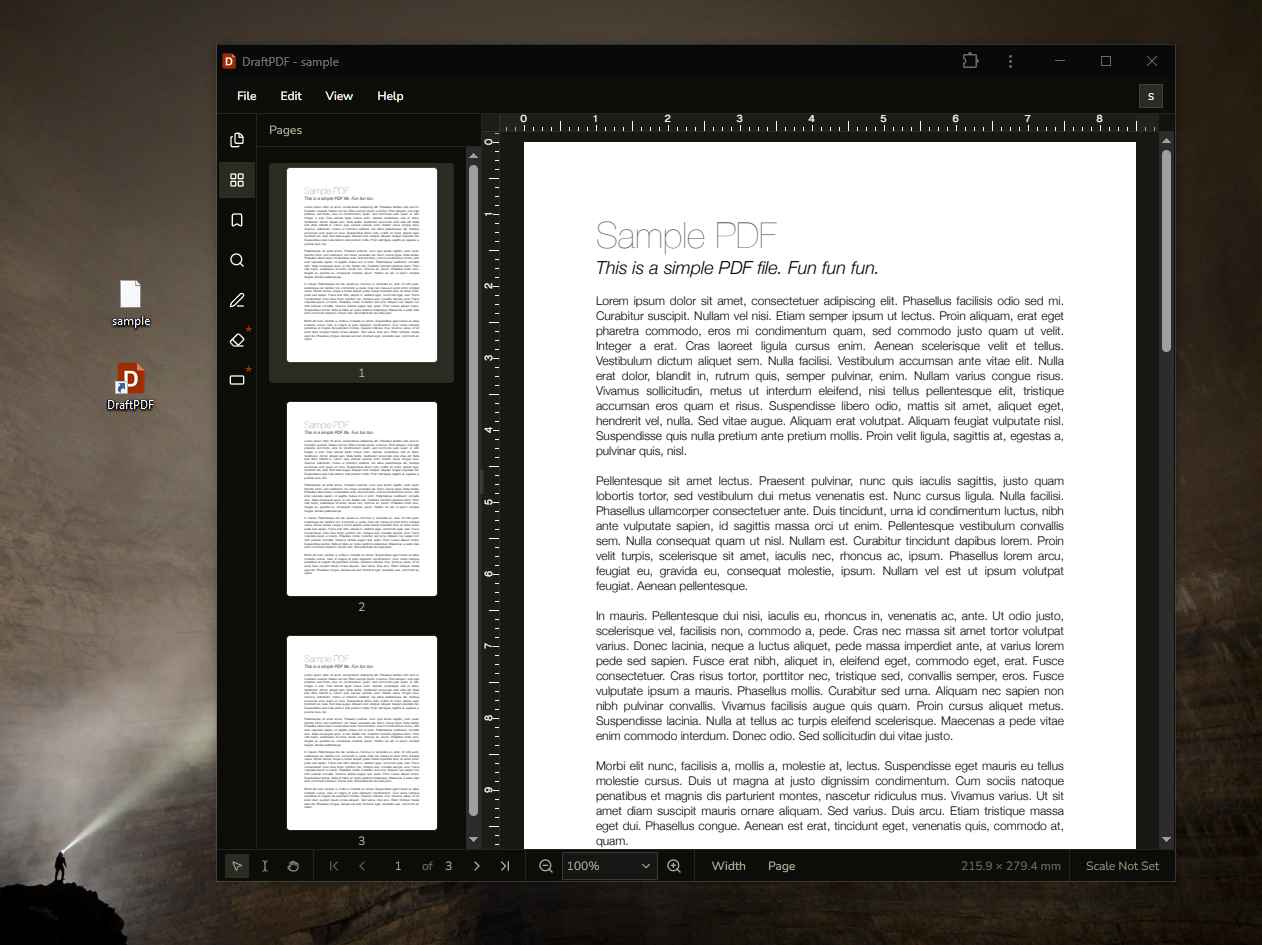
DraftPDF can be installed as a Progressive Web App in supported browsers. The installed app opens in its own window, can be launched from your desktop or app launcher, and keeps core app files cached for faster startup.
Warning:Desktop PWA installation is best supported in Chrome and Microsoft Edge. Firefox desktop does not currently support installing PWAs from a web app manifest.
Install from the editor
- Open DraftPDF in Chrome or Microsoft Edge.
- Sign in and open the editor.
- Click Install next to the account menu.
- Review the benefits in the dialog, then click Install.
- Confirm the browser's installation prompt.
Install from the browser
- Open DraftPDF in Chrome or Microsoft Edge.
- Look for the install icon in the address bar.
- Click the install icon.
- Confirm the browser's installation prompt.
Tip:If you do not see an Install button, the app may already be installed, your browser may not support desktop PWA installation, or the browser may not have finished checking installability yet.