Page Management
Flattening Annotations
How to permanently bake annotations into PDF page content using DraftPDF's flatten tools.
Flattening an annotation bakes its visual appearance directly into the PDF page content. Once flattened, the annotation no longer exists as a separate editable object — its ink, color, and shape become part of the page itself, visible in every PDF viewer and impossible to edit or delete.
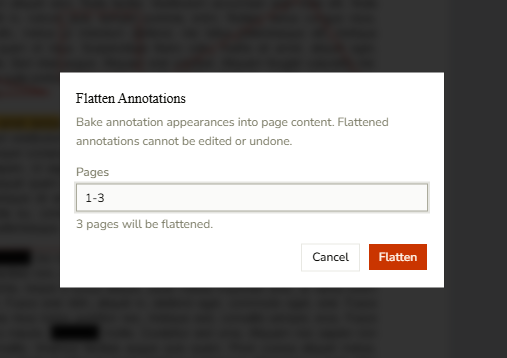
Flatten all annotations on a page range
- Open a PDF in DraftPDF.
- Go to Edit > Flatten Annotations…
- Enter a page range in the input field (e.g. "1-5" or "all").
- Click Flatten. A loading indicator shows while the operation runs.
- When complete, the affected pages refresh automatically with annotations baked in.
Flatten a single annotation via right-click
- Switch to Select mode (press Escape or click the arrow tool).
- Click the annotation you want to flatten to select it.
- Right-click the annotation.
- Choose Flatten from the context menu.
Tip:Right-clicking a group flattens all annotations in the group at once.
Flatten selected annotations via the Markup List
- Open the Markup List panel (the list icon in the right sidebar).
- Check the boxes next to the annotations you want to flatten.
- Click the Flatten Selected button (stack icon) in the toolbar above the list.
Warning:Flattening is permanent and cannot be undone. Save a copy of the document before flattening if you need to access the markups later.
Tip:Stamps, signatures, and freehand drawings can all be flattened. Widget (form field), Link, and Redact annotation types are excluded — use the dedicated Redact workflow for sensitive content.