Adding Header and Footer Content
Add repeating header and footer text, page numbers, bates numbers, and dates to a PDF in DraftPDF.
The Header & Footer tool adds real page content to your PDF. You can place mixed text and tokens in any of six positions: header left, header center, header right, footer left, footer center, and footer right.
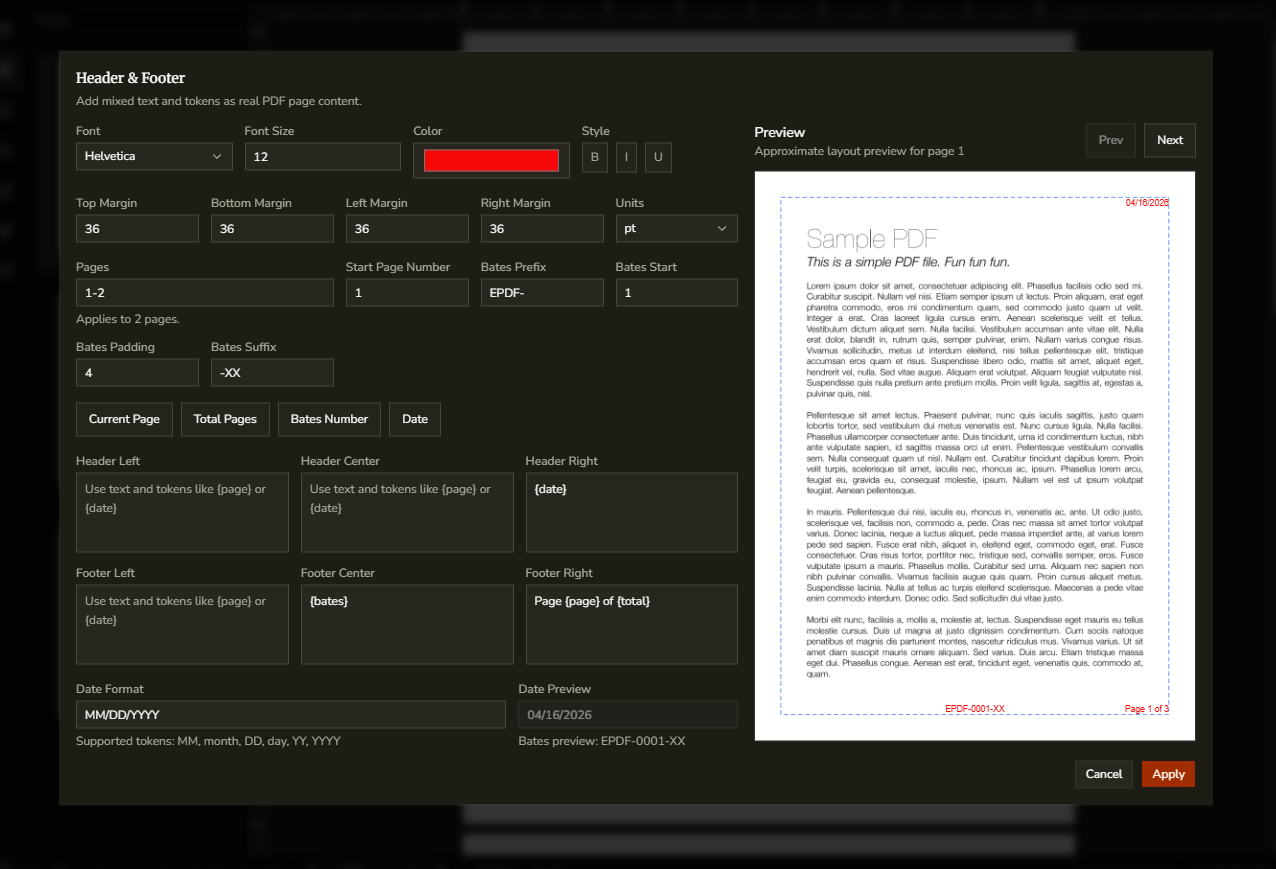
Add header or footer content
- Open a PDF in DraftPDF.
- Go to Edit > Header & Footer…
- Choose the shared font, size, style, color, and margins.
- Optionally enter a page range such as "1, 3-5" to limit where the header/footer is applied.
- Type text into any header or footer field, or insert tokens such as {page}, {total}, {bates}, or {date}.
- Click Apply. The affected pages refresh automatically.
Supported tokens
Each slot supports plain text mixed with tokens. {page} uses the current page number with the Start Page Number offset applied. {total} uses the document's total page count. {bates} uses the configured bates sequence. {date} uses the resolved date string from the Date Format field.
Format the date token
- Use the Date Format field in the dialog.
- Supported date format tokens are MM, month, DD, day, YY, and YYYY.
- Example formats include "MM/DD/YYYY", "month DD, YYYY", and "day, month DD, YY".
Apply only to selected pages
Leave the Pages field blank to apply the header/footer to every page. Enter a page range to apply it only to selected pages. Reapplying with a different page range replaces the previous DraftPDF-managed header/footer content.
Edit or remove an existing header/footer
- Open Edit > Header & Footer… again for the same document.
- DraftPDF reloads the saved Header & Footer settings from the PDF metadata.
- Change the settings and click Apply to replace the existing DraftPDF-managed header/footer content, or click Remove Header & Footer to delete it.