Getting Started
Setting and Clearing Preferences
How to save annotation defaults, manage saved signatures, and clear stored preferences in DraftPDF.
DraftPDF stores saved preferences and saved signature entries in your account so they can follow you across sessions when you are signed in.
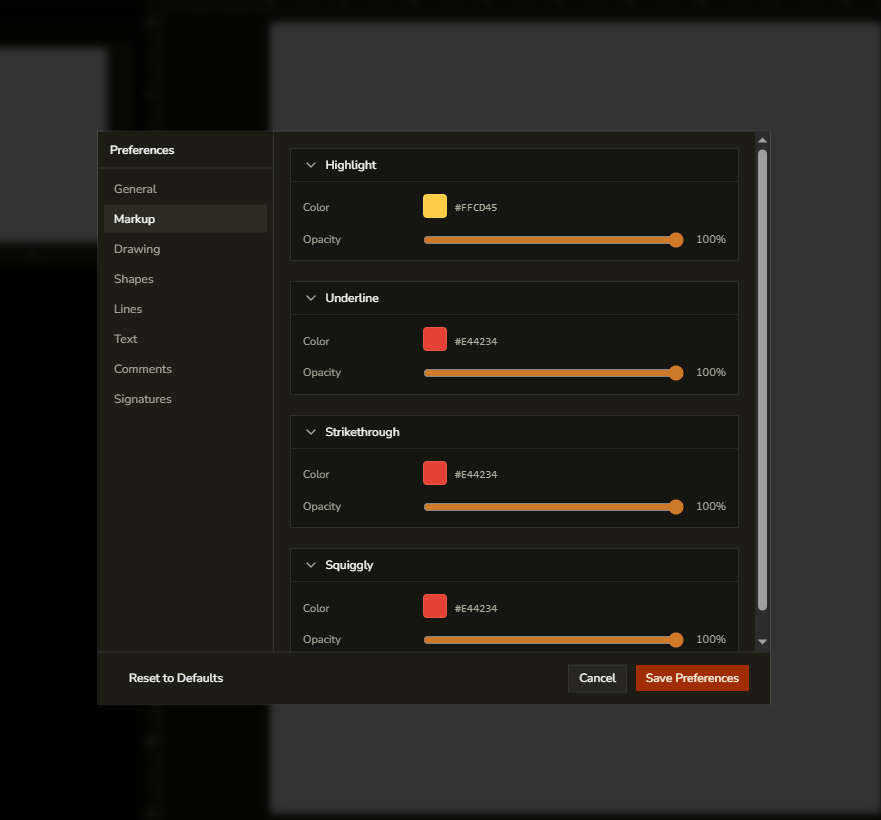
Save annotation preferences
- Open File > Preferences.
- Choose a category such as General, Markup, Drawing, Shapes, Lines, Text Box, or Comments.
- Adjust the default author name or the default appearance settings for the available tools.
- Click Save Preferences.
The Signatures category in Preferences shows the signature and initials entries currently saved to your account.
Clear saved preferences
- Open File > Preferences.
- Click Reset to Defaults.
- DraftPDF clears saved annotation preferences and removes saved signature entries from your account.
Tip:If Save Preferences is unavailable on your account, you can still change tool settings for the current session from the right-side defaults panel.