Bookmarks
Adding Bookmarks
How to add new bookmarks to a PDF in DraftPDF using the panel toolbar or the page thumbnail context menu.
You can add bookmarks from the Bookmarks panel toolbar or directly from the page thumbnail strip.
From the Bookmarks panel
- Open the Bookmarks panel from the left sidebar.
- Click the + button in the panel header.
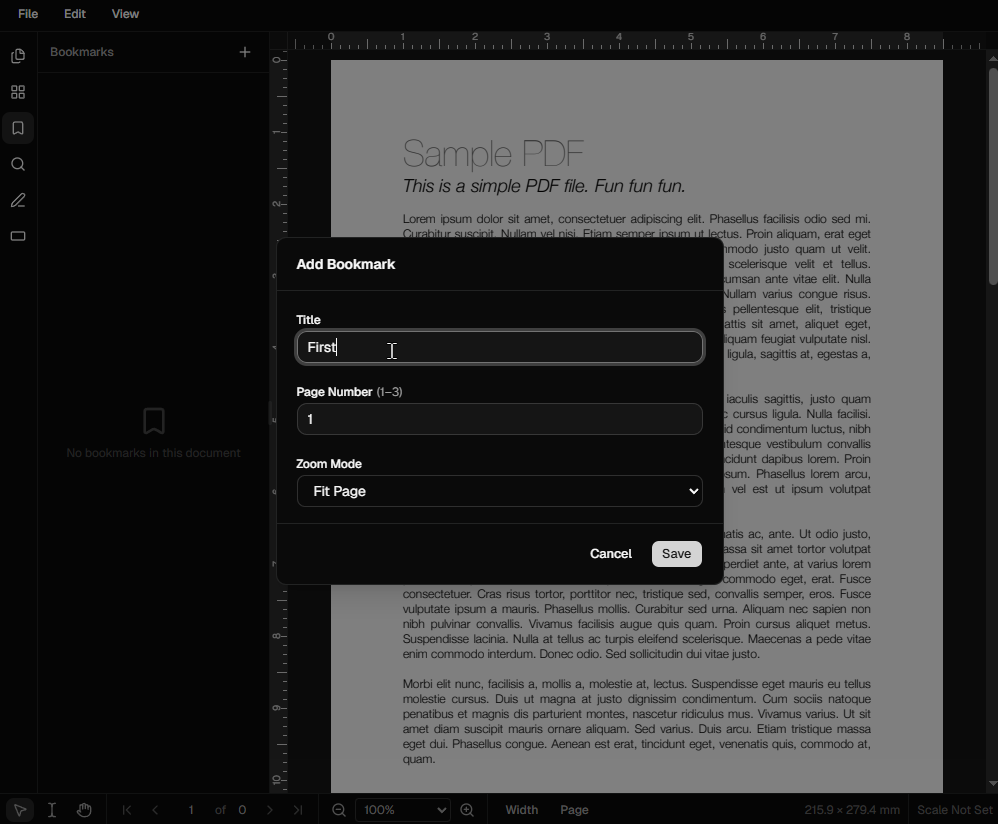
- The Add Bookmark dialog opens.
- Enter a title for the bookmark.
- Set the target page number.
- Choose a zoom mode: Fit Page, Fit Width, Fit Height, or Custom XYZ.
- Click Save.
From the thumbnail context menu
- Open the Thumbnails panel from the left sidebar.
- Right-click the page tile you want to bookmark.
- Select Add Bookmark from the context menu.
- The Add Bookmark dialog opens with the page number pre-filled.
- Enter a title and adjust the zoom mode if needed.
- Click Save.
Tip:Bookmarks are saved into the PDF on export — use File > Download (or Ctrl+S / Cmd+S) to preserve them.