Bookmarks
Deleting Bookmarks
How to delete individual bookmarks or clear all bookmarks from a PDF in DraftPDF.
Bookmarks can be removed one at a time or all at once.
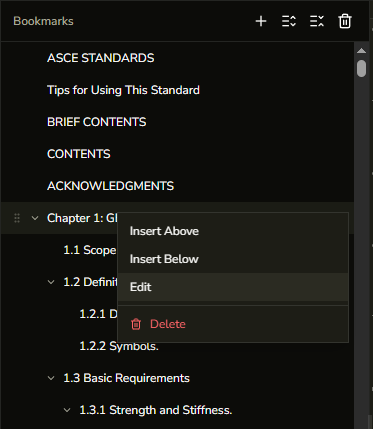
Delete a single bookmark
- Open the Bookmarks panel from the left sidebar.
- Right-click the bookmark you want to remove.
- Select Delete from the context menu.
- The bookmark and all of its children are removed immediately.
Delete all bookmarks
- Open the Bookmarks panel from the left sidebar.
- Click the Delete All (trash) button in the panel header.
- Confirm the action in the dialog that appears.
- All bookmarks are removed from the document.
Warning:Deleting bookmarks cannot be undone. If you want to keep the original outline, download a copy of the PDF before making changes.