Insert Pages into Any PDF
Add a blank page, import pages from another file, or insert at any position — all without leaving your browser.
Free & full-featured · No uploads · Works offline
PAGE INSERTION
Put the right pages in the right place
Precise control over where new pages land, so your document structure always makes sense.
Insert from another PDF: Pick specific pages from a second file and drop them exactly where you need them.
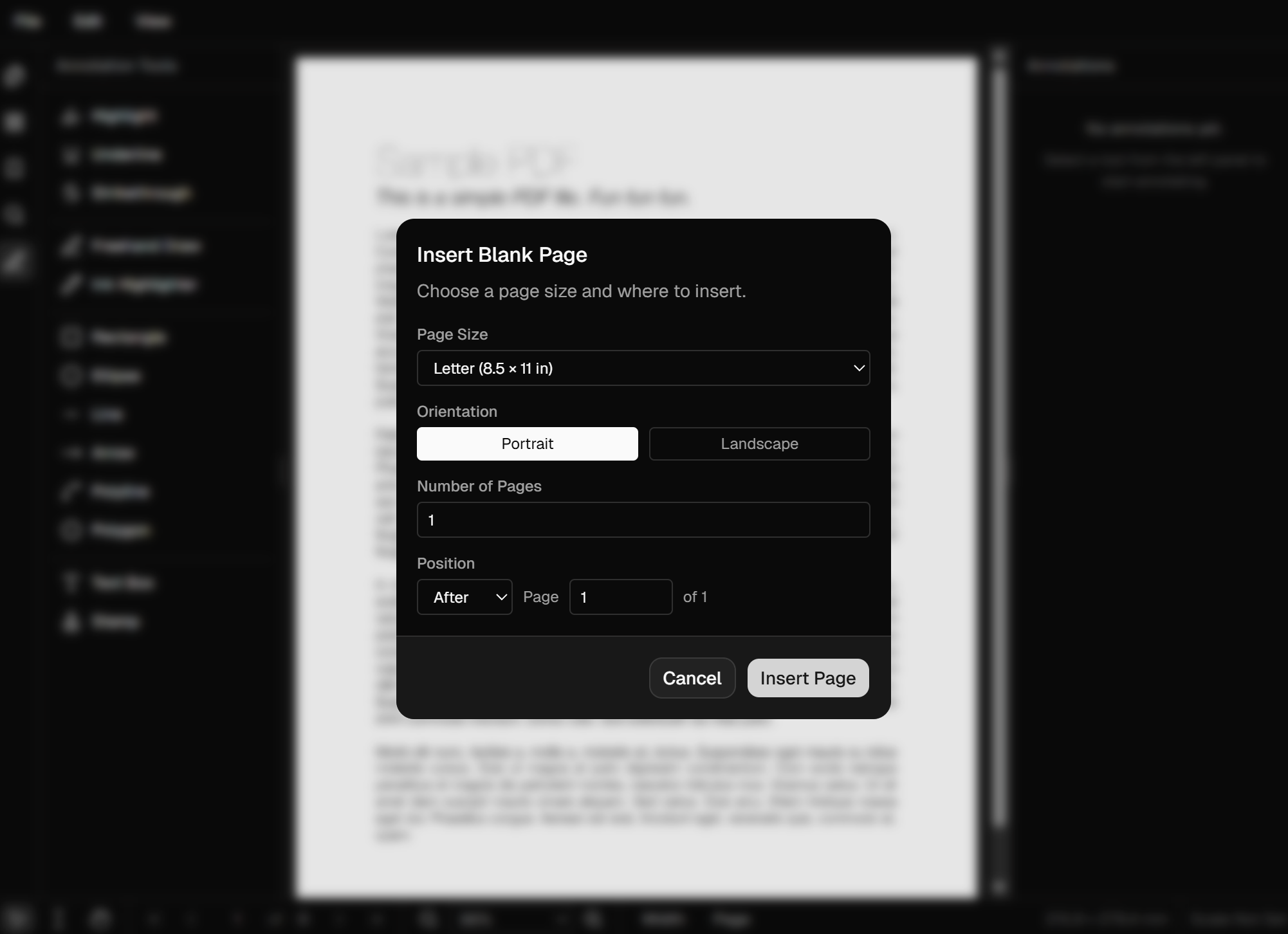
Insert blank pages: Add empty pages in custom sizes — useful for cover pages, spacers, or handwritten notes.
Exact position control: Choose before or after any existing page index — no guessing required.
Frequently Asked Questions
Everything you need to know before you get started.
How do I insert a page into a PDF?
Step-by-step guide
Open your PDF in DraftPDF and use the Insert Pages panel on the left sidebar. Choose a source file (or blank page), select a target position, and confirm. The page is added immediately.
Can I insert pages from a different PDF?
Multi-document support
Yes. Use the 'Insert from file' option to pick any PDF on your device. You can choose which pages to import and exactly where to place them in the destination document.
What page sizes can I insert?
Size options
DraftPDF supports standard sizes (A4, Letter, Legal, A3, and more) as well as custom dimensions. Portrait and landscape orientations are both supported.
Will bookmarks update after inserting?
Bookmarks & metadata
Existing bookmarks are preserved. After inserting pages, you can use the Bookmarks panel to add or update entries to reflect your new document structure.
Ready to get started?
Open DraftPDF in your browser — no account, no install, no data ever leaves your device.
Free & full-featured · Works offline · No sign-up required
Related Tools
Merge PDFs
Open multiple PDF files and combine them into one document in seconds. Free, browser-based PDF merger — no uploads, no installs.
✂️Delete Pages
Remove unwanted pages from any PDF document instantly. Browser-based, no uploads, no installs.
🔖PDF Bookmarks
Create, edit, and organise PDF bookmarks (outlines) to make navigation effortless. Free, browser-based.
✏️Edit PDF
Edit, annotate, and modify PDF files directly in your browser. No software install, no uploads.