Line Up and Space Out Your PDF Markups
Pick an alignment from the toolbar and scattered markups snap into line, or space them with equal gaps. Every command is one undo step.
Free & full-featured · No uploads · Works offline
ALIGN
Line markups up with one another
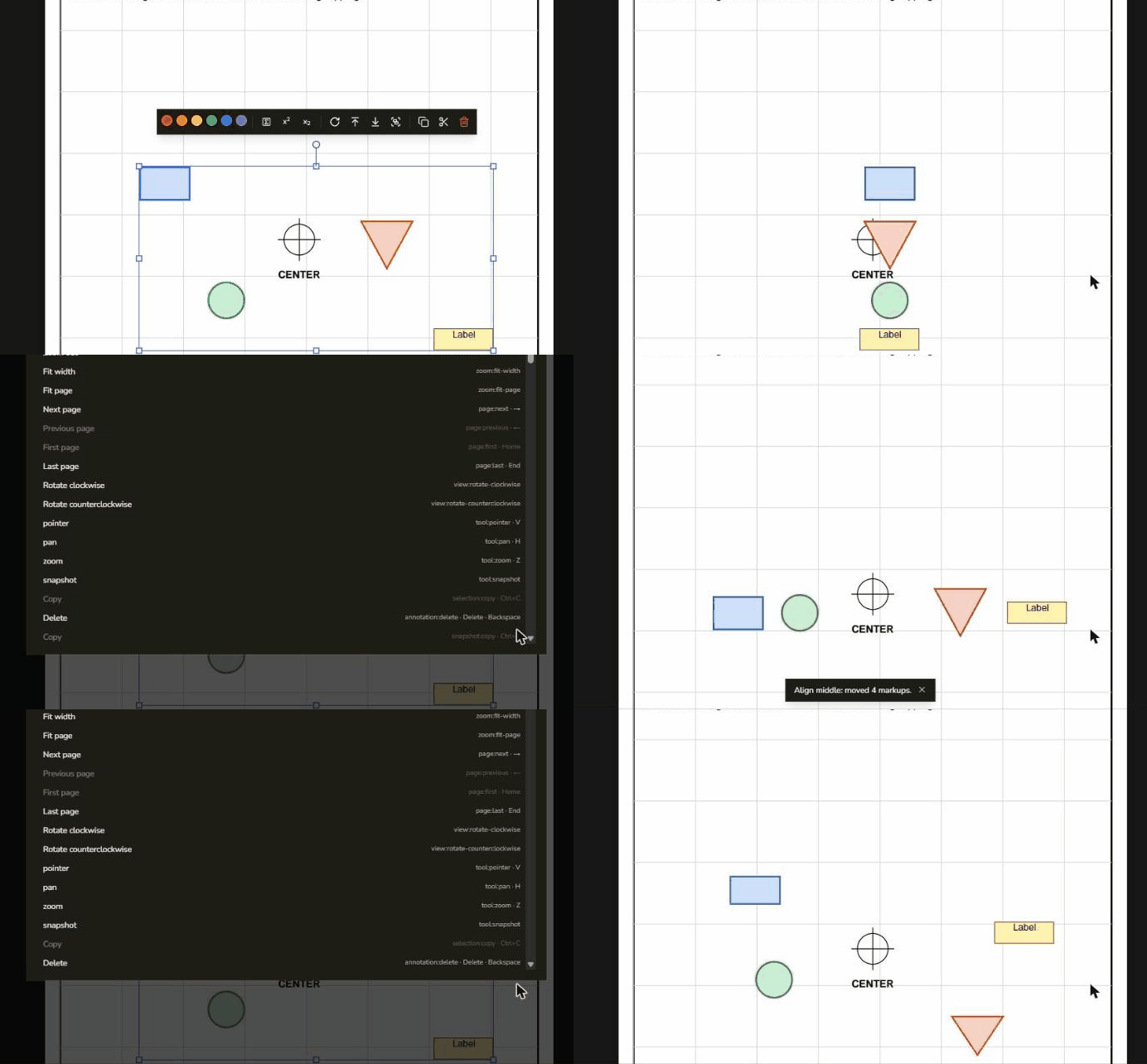
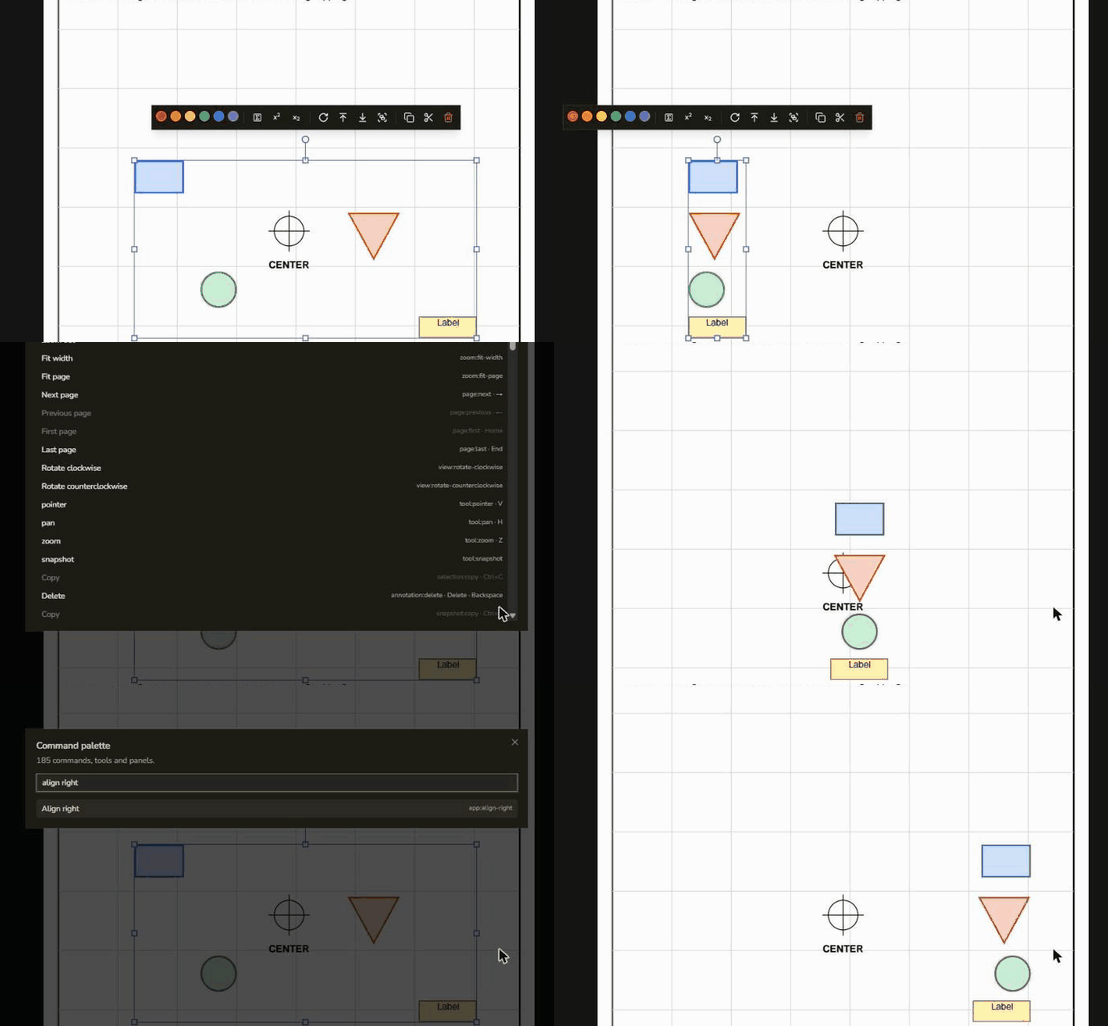
Select two or more markups and pick an alignment. They line up with an edge or middle line of the selection as a whole.
Six alignments: Left, center and right, then top, middle and bottom. Each lines the markups up with the matching edge or middle line of everything you selected.
On the toolbar: The eight buttons sit in their own section of the top toolbar, greyed out until enough markups are selected. They are also in Edit, Align and in the command palette.
Shapes, text and pen strokes: Shapes, lines, polygons, text boxes and freehand strokes all line up by their visible edges. A group moves as one, and locked markups stay where they are.
DISTRIBUTE
Space markups evenly
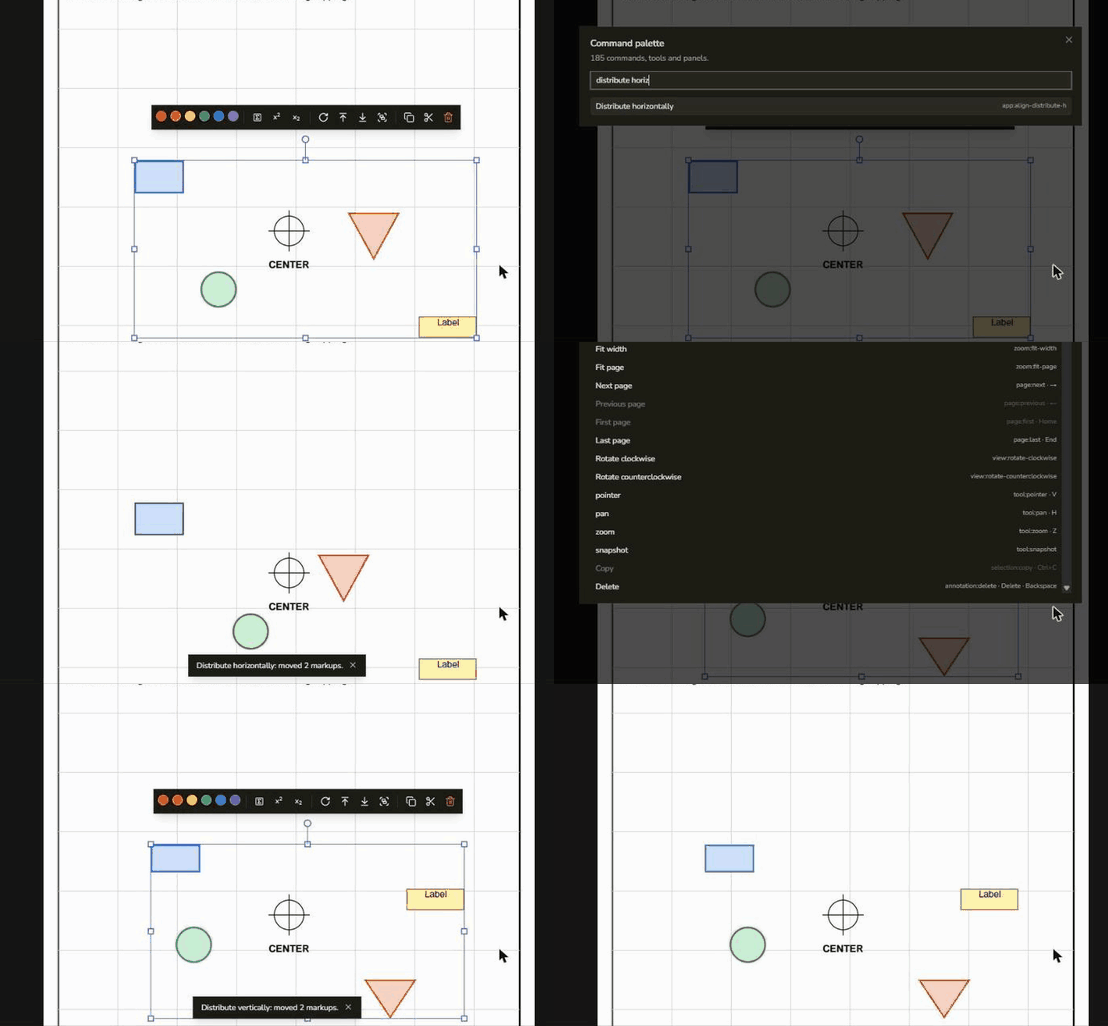
Select three or more markups and even out the gaps between them, across or down the page.
Equal gaps: Distribute horizontally or vertically keeps the two outermost markups where they are and spaces the ones between so every gap is the same.
However they were scattered: Markups are ordered by where they are, not by the order you clicked them in, so you can select them in any order.
One undo step: However many markups move, one Undo puts them all back, and a message says how many moved.
Frequently Asked Questions
Everything you need to know before you get started.
How do I align shapes in a PDF?
Step-by-step guide
Select two or more markups (click one and Shift-click the others, or drag a box round them), then click an Align button on the toolbar, or choose Edit, Align. Align left, center and right line them up sideways; top, middle and bottom line them up up and down.
How do I space markups evenly?
Distribute
Select three or more markups and choose Distribute horizontally or Distribute vertically. The two outermost markups stay where they are and the others move so the gaps between neighbours are equal.
What kinds of markup can I align?
Supported markups
Shapes, lines, polygons, text boxes and freehand pen strokes, using their visible edges. They must be on the same page. A group moves as one, and locked markups stay where they are.
Can I undo an alignment?
Undo
Yes. Each align or distribute command is a single undo step, however many markups it moved.
Can I align to a particular markup?
Choosing the reference
Markups line up with the edges of the whole selection. To keep one markup fixed, lock it in the properties panel: it stays where it is, and it stays put exactly when it is already at the edge or middle you chose.
Is my file uploaded?
Privacy & security
No. The commands run in your browser and your document stays on your device.
Ready to get started?
Open DraftPDF in your browser — no account, no install, no data ever leaves your device.
Free & full-featured · Works offline · No sign-up required
Related Tools
Merge PDFs
Open multiple PDF files and combine them into one document in seconds. Free, browser-based PDF merger — no uploads, no installs.
➕Insert Pages
Add pages from another PDF or insert blank pages anywhere in your document. Free, browser-based, no uploads required.
✂️Delete Pages
Remove unwanted pages from any PDF document instantly. Browser-based, no uploads, no installs.
🔖PDF Bookmarks
Create, edit, and organise PDF bookmarks (outlines) to make navigation effortless. Free, browser-based.