Offset, Trim, Mirror and Array Your PDF Markups
The edit commands you know from CAD, on the lines, shapes and measurements you draw on a PDF. Type a distance in real units, see the result before you click, and undo any command in one step.
Free & full-featured · No uploads · Works offline
MOVE AND TRANSFORM
Move, copy, mirror and scale from a base point
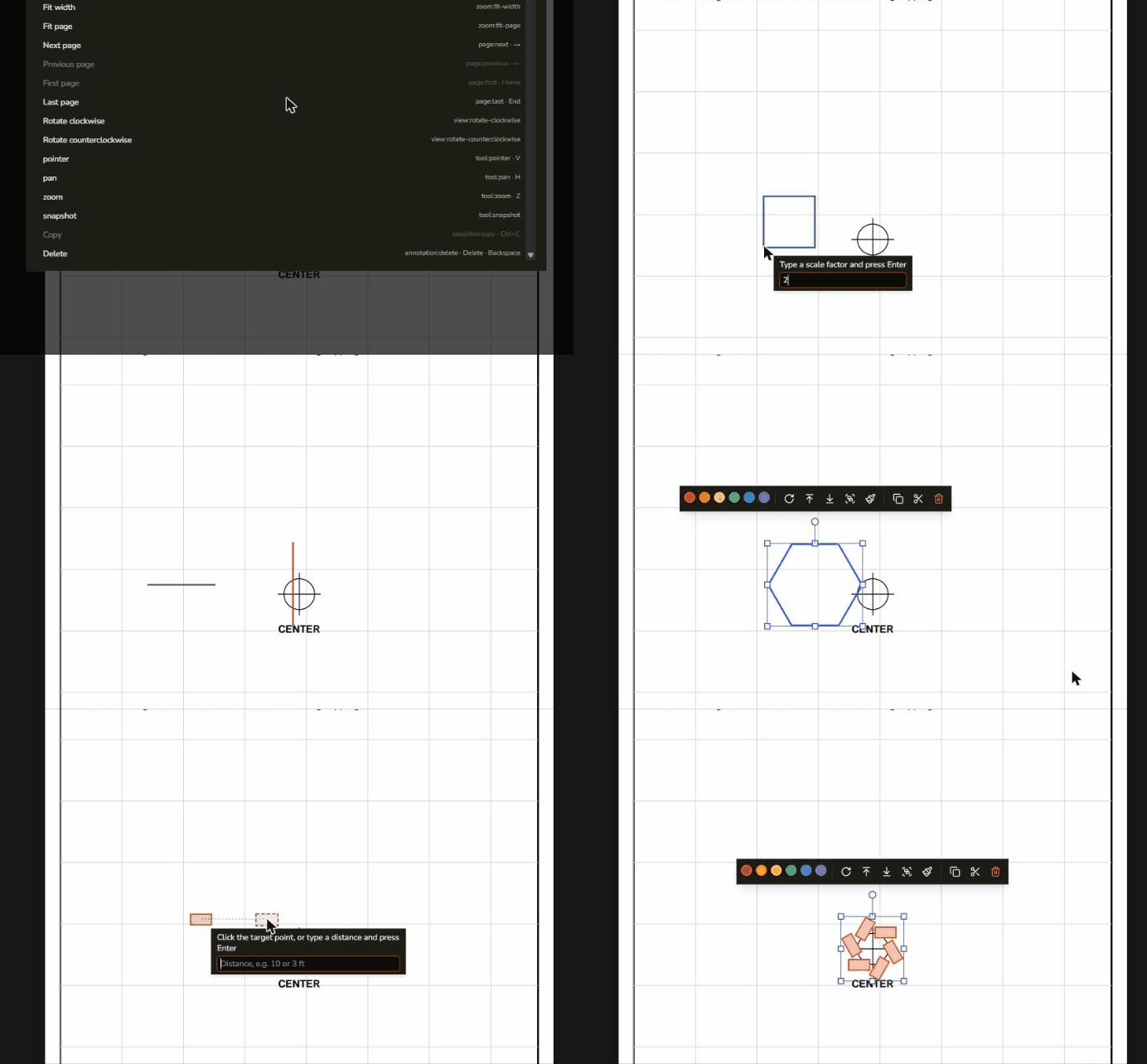
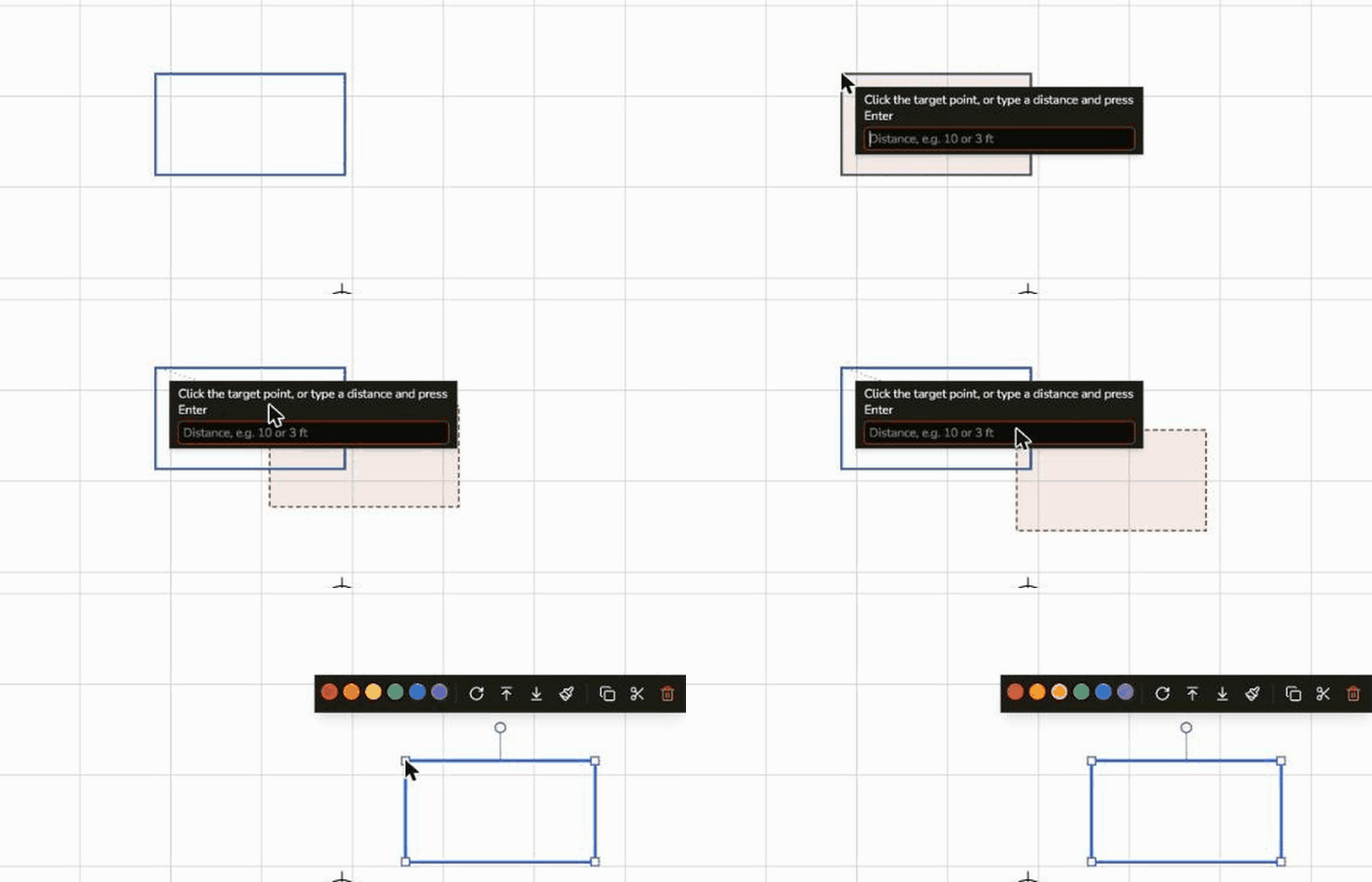
Select markups, pick a base point, and place them where you want. A dashed outline follows the pointer so you see the result before you commit.
Base point and typed distance: Click where it goes, or type a distance such as 3 ft and press Enter. Distances follow the page scale, so you work in real units.
Mirror and scale: Flip markups across a line you pick, or scale them about a point by a factor such as 2 or 50%. Rectangles and ellipses keep their proportions.
A hotkey for every command: M to move, I to mirror, S to scale, and so on. The hotkeys show in the menu, and every command is in the command palette.
OFFSET, TRIM AND EXTEND
Click the markup, then shape it
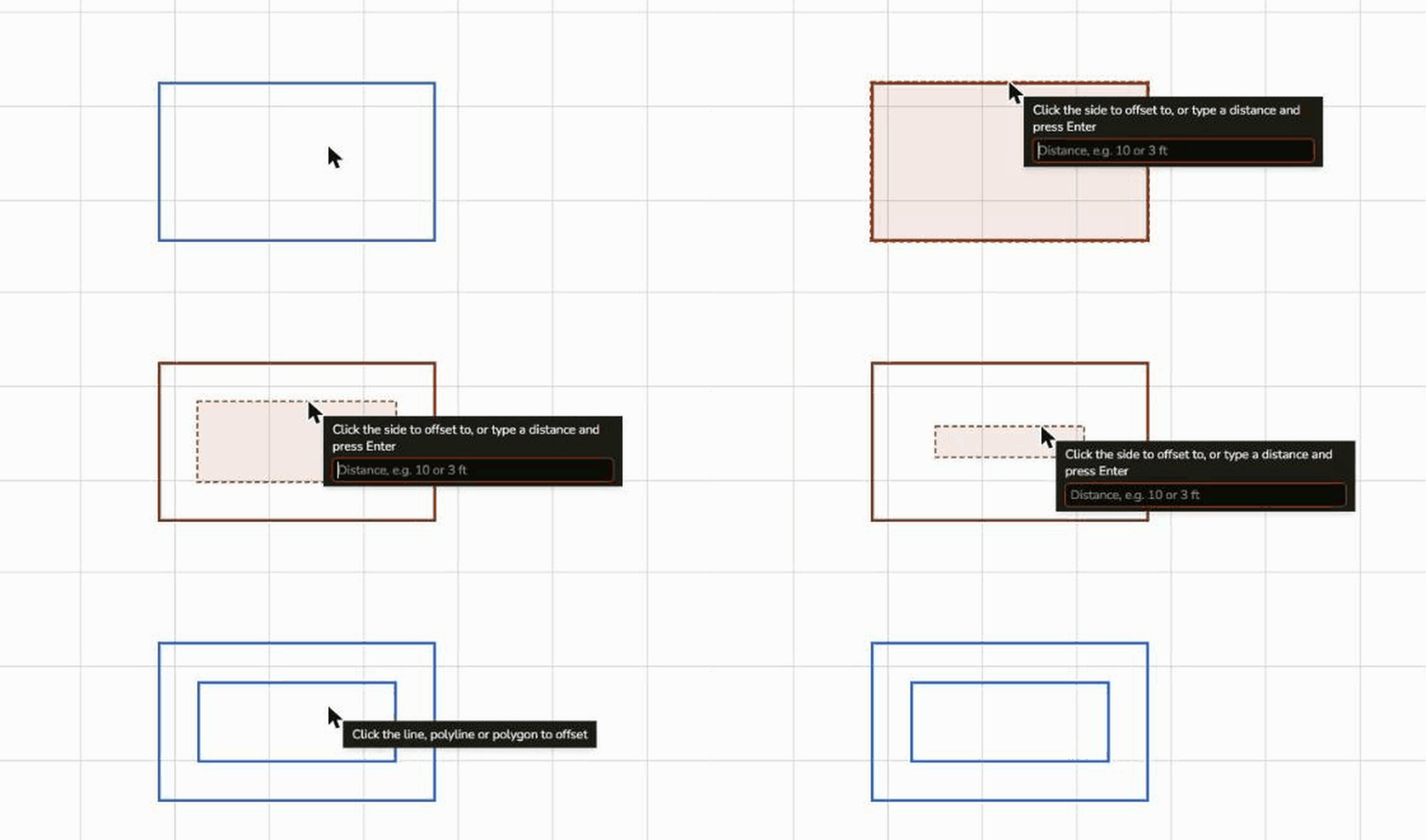
Offset, Trim, Extend and Break need no selection. Click the line you mean and the command stays on, so you can work down a drawing.
Offset with a preview: Make a parallel copy of a line, polyline, polygon, rectangle or ellipse at the distance you click or type. DraftPDF refuses an offset that would fold over itself, so you never get a tangle.
Trim and extend: Cut a line back to the markups that cross it, or carry its end on to the next one. Rectangles, ellipses and polygons count as edges.
Break and join: Take a gap out of a line or split it in two. Join lines whose ends meet into one polyline, or explode a polyline back into lines.
ARRAYS
Repeat a markup in a grid or a circle
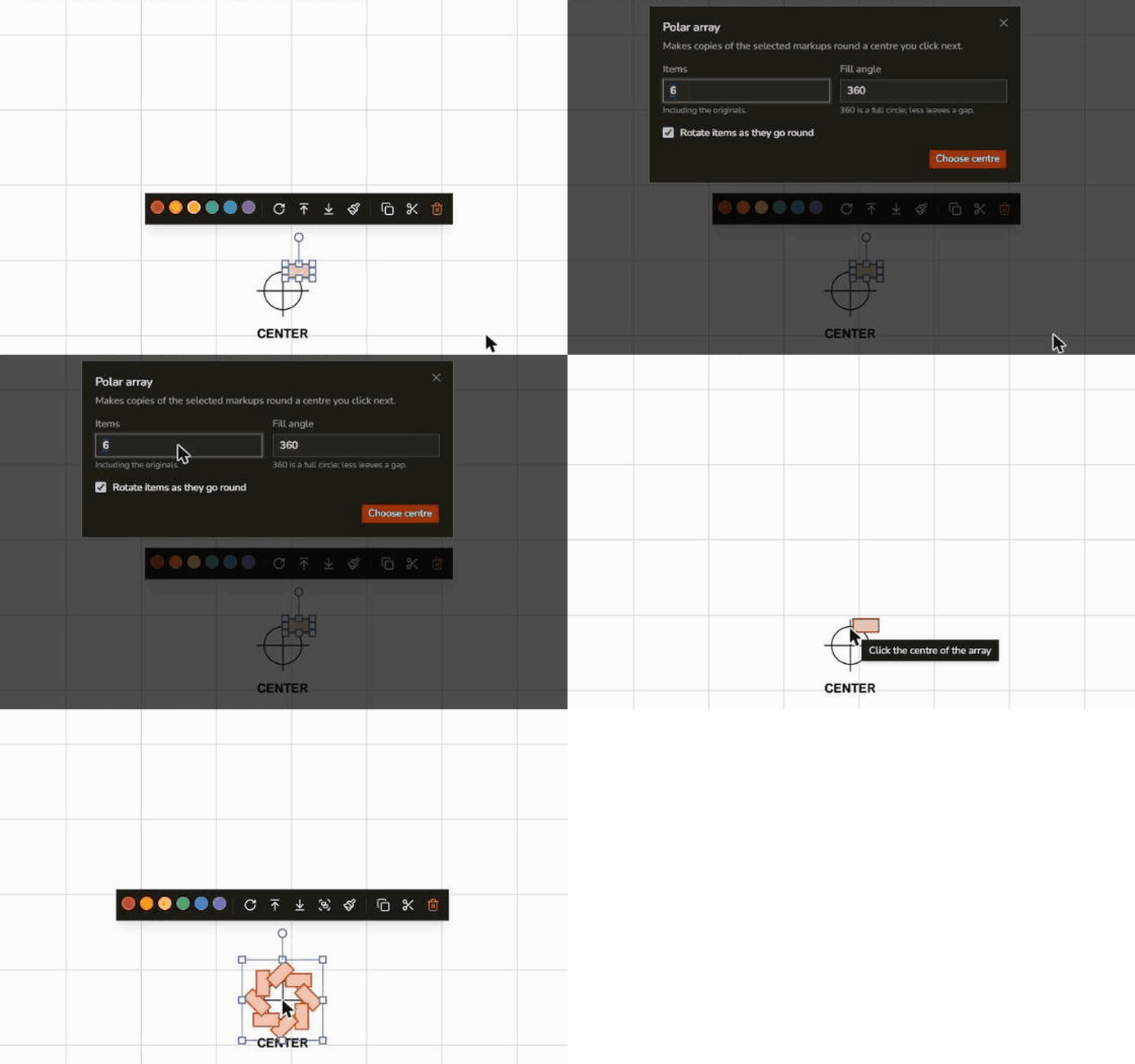
Place one fixture, column or chair, then repeat it. Set how many, and how far apart or how far round.
Multiply: A grid of copies from a number of columns and rows, with the gap between them in real units. A negative gap overlaps the copies.
Polar array: Copies round a centre you click, over a full circle or part of one. Turn the copies as they go round, or keep them facing the same way.
Safe by default: Arrays stop at 500 copies, and copies of a named measurement get new names, so your Math notes still read the right one.
Frequently Asked Questions
Everything you need to know before you get started.
How do I offset a line or polygon in a PDF?
Step-by-step guide
Choose Edit, Modify, Offset (or press O), then click the line, polyline, polygon, rectangle or ellipse. Move the pointer to the side you want and click, or type a distance such as 10 ft and press Enter. A parallel copy is made at that distance. A rectangle stays a rectangle; an ellipse is offset approximately.
How do I trim a line to another line?
Trim and extend
Choose Edit, Modify, Trim (Shift+T) and click the part of the line to remove. It is cut back to the nearest markups that cross it. Extend (Shift+E) does the opposite: click near the end of a line and it runs on to the next markup.
Do the commands work on measurements?
Measurements and Math notes
Move, Copy, Mirror, Scale, Multiply, Polar array and Reverse do, and copies keep their scale. A copy of a measurement named L1 is named L1-2, so Math notes that read L1 still find the original. Offset, Trim, Extend, Break and Join leave measurements alone.
Can I undo a command?
Undo
Yes. Every command is one undo step, even when it changes several markups. If a command changes a measurement's value, Math notes update their text as a second step, so press Undo twice to undo both.
What can the commands work on?
Current limits
Lines, polylines, polygons, rectangles and ellipses, including measurements. Text boxes, stamps and freehand pen strokes are not supported yet. The commands work on your markups, not on the lines of the drawing underneath, and there is no snapping to the drawing yet.
Can I line markups up or space them evenly?
Align and distribute
Yes. Select two or more markups and choose Edit, Align: left, center, right, top, middle or bottom. Select three or more to distribute them horizontally or vertically with equal gaps. It works on shapes, lines, text boxes and pen strokes, groups move as one, and each command is one undo step. There is a dedicated page for it too.
Is my file uploaded?
Privacy & security
No. The commands run in your browser and your document stays on your device.
Ready to get started?
Open DraftPDF in your browser — no account, no install, no data ever leaves your device.
Free & full-featured · Works offline · No sign-up required
Related Tools
Merge PDFs
Open multiple PDF files and combine them into one document in seconds. Free, browser-based PDF merger — no uploads, no installs.
➕Insert Pages
Add pages from another PDF or insert blank pages anywhere in your document. Free, browser-based, no uploads required.
✂️Delete Pages
Remove unwanted pages from any PDF document instantly. Browser-based, no uploads, no installs.
🔖PDF Bookmarks
Create, edit, and organise PDF bookmarks (outlines) to make navigation effortless. Free, browser-based.